> ## Documentation Index
> Fetch the complete documentation index at: https://docs.userecord.io/llms.txt
> Use this file to discover all available pages before exploring further.
# Meta WhatsApp Business Configuration Guide
> Configure your Meta WhatsApp Business Account for integration with the Record Platform
To enable WhatsApp communication through your own WhatsApp Business Account, a few Meta configurations are required. Once these configurations are completed, the Record implementation team will connect your WhatsApp Business Account with the Record Platform.
## 1. Information Required from Your Team
Please share the following details after your Meta WhatsApp Business Account has been configured.
| Required Item | Description |
| ---------------------------- | ------------------------------------------------------------------- |
| Phone Number ID | The Phone Number ID associated with your WhatsApp Business number. |
| Permanent Access Token | A permanent access token generated from your Meta Business Account. |
| WhatsApp Business Account ID | Optional, but helpful for verification and future support. |
## 2. Generating a Permanent Access Token
To allow the Record Platform to securely send WhatsApp messages on behalf of your WhatsApp Business Account, you must generate a **Permanent / No Expiration Access Token** from your Meta Business Account.
We recommend generating a dedicated access token specifically for the Record Platform. This makes future management, auditing, and permission control much easier.
Sign in to your **Meta Business Manager** and navigate to:
```text theme={null}
Business Settings → Users → System Users
```
Here, you can either:
* Create a **new System User** specifically for the Record Platform. This is recommended.
* Use an existing System User if one has already been configured for your organization.
After selecting the System User, ensure that the appropriate WhatsApp application is assigned.
You have two options:
* **Option 1 — Recommended:** Create a dedicated application for the Record Platform.
* **Option 2:** Use your existing WhatsApp Business application if you prefer to manage all integrations within the same project.
Both approaches are supported. However, using a dedicated application provides better separation of environments and simplifies future maintenance.
Before generating the token, confirm that the System User has the required permissions for the assigned WhatsApp Business application.
The System User should have access to:
* WhatsApp Business Account
* WhatsApp Phone Number
* Application Management
* Messaging Permissions with full access
These permissions are required for the Record Platform to send WhatsApp messages, manage templates, and receive delivery status updates.
Once the application has been assigned:
1. Select the **System User**.
2. Click **Generate Token**.
3. Choose the WhatsApp application that will be integrated with the Record Platform.
4. Select the required permissions.
5. Generate the token.
When generating the token, choose a **Permanent / No Expiration Access Token**.
This ensures uninterrupted communication between your WhatsApp Business Account and the Record Platform without requiring periodic token updates.
Once the token has been generated, securely share the following details with the Record implementation team:
* Permanent Access Token
* Phone Number ID
* WhatsApp Business Account ID, if available
Our team will securely configure these credentials within the Record Platform to complete the integration.
## 3. Best Practice for Access Token Setup
For improved security and easier management, we recommend creating a **dedicated System User** and a **dedicated application** exclusively for the Record Platform.
This approach provides several benefits:
* Isolates Record Platform access from other business integrations.
* Simplifies permission management.
* Makes future token rotation easier, if required.
* Prevents disruptions to other WhatsApp integrations within your Meta Business Account.
* Provides better operational control and auditability.
If you already have an existing WhatsApp application in production, you may continue using it by generating a new Permanent / No Expiration Access Token for the Record Platform.
## 4. Webhook Configuration
Please configure the following webhook in your Meta Developer Console.
### Callback URL
The Record implementation team will provide this URL during onboarding.
```text theme={null}
```
Example:
```text theme={null}
https://your-domain.com/api/v1/webhooks/whatsapp
```
### Verify Token
The Record implementation team will also provide the Verify Token.
```text theme={null}
RECORD_VERIFY_TOKEN
```
### Webhook Events
Please subscribe to the following events:
* `messages`
* `message_status`
* `message_template_status_update`
Once completed, click **Verify and Save**.
## Steps - Meta Developer Account Configuration
To connect your WhatsApp Business Account with the Record Platform, complete the following steps in your Meta Developer account.
Sign in to your Meta Developer account using the Meta Business account associated with your WhatsApp Business Account.
Navigate to your application dashboard.
From the left navigation menu, open the **Dashboard** and locate the **Use Cases** section.
Select **Connect with customers through WhatsApp** to begin the WhatsApp Business setup.
During the production setup, Meta will ask for your webhook configuration.
Enter the following details provided by the Record team:
* Callback URL — shared by the Record implementation team during onboarding.
* Verify Token — shared by the Record implementation team during onboarding.
After entering both values, click **Verify and Save** to complete the webhook configuration.
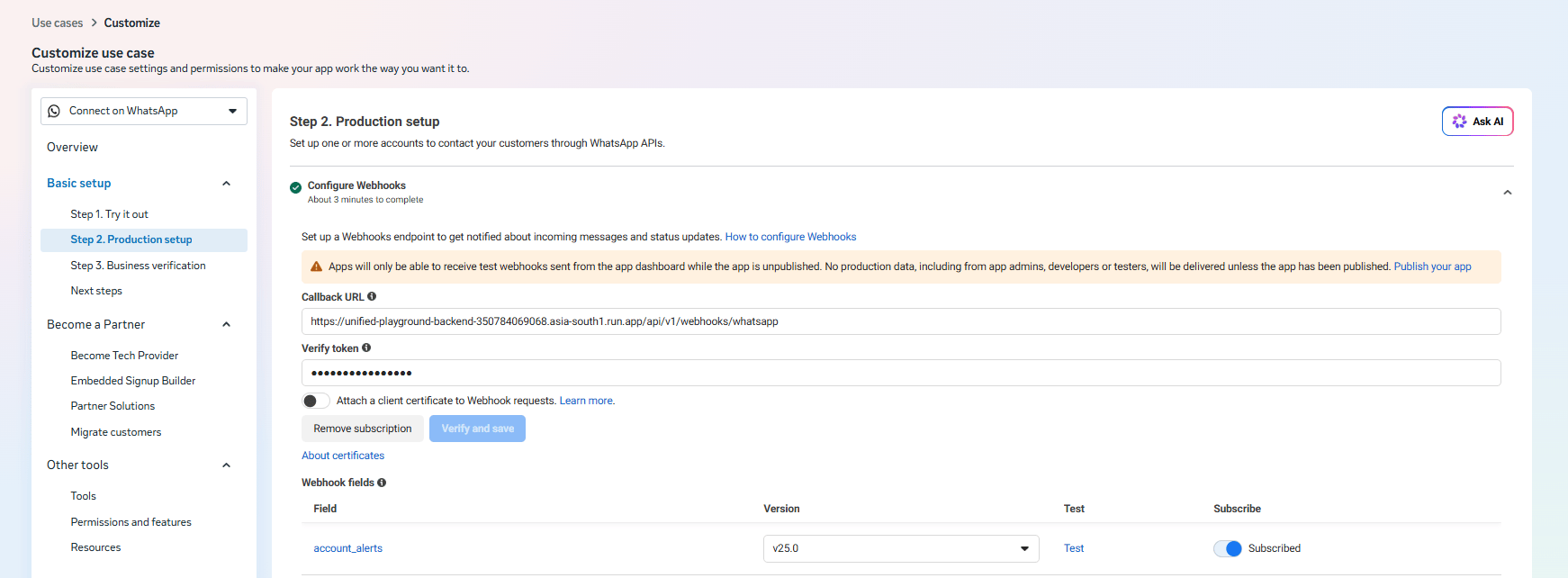 Once the webhook has been successfully verified, complete the remaining WhatsApp Business setup by:
* Registering your WhatsApp Business phone number.
* Completing the business verification process, if applicable.
* Adding your payment method for WhatsApp conversations, if required by Meta.
* Completing the phone number registration.
Once these steps are complete, your WhatsApp Business Account will be ready for integration with the Record Platform.
After your WhatsApp Business Account is fully configured, create the required WhatsApp message templates in your WhatsApp Business Manager.
We recommend creating templates for the following supported languages:
* English
* Tamil
* Telugu
* Hindi
* Kannada
* Malayalam
Once Meta approves your templates, share the **approved template names** with the Record implementation team.
The Record team will map these templates within the platform to ensure the correct language template is automatically used while communicating with candidates.
Once your setup is complete, share the following information with the Record implementation team:
* Phone Number ID
* Permanent Access Token
* Confirmation that the webhook has been successfully configured
* Approved WhatsApp template names for all required languages
After receiving these details, the Record implementation team will complete the platform configuration, connect your WhatsApp Business Account with the Record Platform, perform end-to-end testing, and notify you once your integration is ready for production use.
## 5. WhatsApp Message Templates
Create the following templates inside your Meta WhatsApp Manager.
The approved template names should be shared with the Record team so that they can be configured within the platform.
Please create separate templates for each supported language.
### [Supported Languages](https://app.notion.com/p/Tempalates-Copy-for-Multi-language-395b8ad10d1480bb9a33c40f2e00eeaf)
* English
* Tamil
* Telugu
* Hindi
* Kannada
* Malayalam
### Recommended Naming Convention
#### Job Interest Templates
```text theme={null}
job_interest_en
job_interest_ta
job_interest_te
job_interest_hi
job_interest_kn
job_interest_ml
```
#### Skill Assessment Templates
```text theme={null}
skill_assessment_en
skill_assessment_ta
skill_assessment_te
skill_assessment_hi
skill_assessment_kn
skill_assessment_ml
```
#### Application Completed Templates
```text theme={null}
application_completed_en
application_completed_ta
application_completed_te
application_completed_hi
application_completed_kn
application_completed_ml
```
#### Not Interested Templates
```text theme={null}
not_interested_en
not_interested_ta
not_interested_te
not_interested_hi
not_interested_kn
not_interested_ml
```
Please share the final approved template names with the Record team after Meta approval.
## 6. Recommended WhatsApp Templates
### Template 1 — Job Interest
| Field | Value |
| -------- | --------------------- |
| Category | Utility |
| Header | None |
| Footer | Reply STOP to opt out |
#### Body
```text theme={null}
Hi,
We have a job opportunity for you.
Are you currently looking for work?
```
#### Buttons
* Yes, interested
* No, not now
#### Variables
| Variable | Description |
| -------- | -------------- |
| `{{1}}` | Candidate Name |
Once the webhook has been successfully verified, complete the remaining WhatsApp Business setup by:
* Registering your WhatsApp Business phone number.
* Completing the business verification process, if applicable.
* Adding your payment method for WhatsApp conversations, if required by Meta.
* Completing the phone number registration.
Once these steps are complete, your WhatsApp Business Account will be ready for integration with the Record Platform.
After your WhatsApp Business Account is fully configured, create the required WhatsApp message templates in your WhatsApp Business Manager.
We recommend creating templates for the following supported languages:
* English
* Tamil
* Telugu
* Hindi
* Kannada
* Malayalam
Once Meta approves your templates, share the **approved template names** with the Record implementation team.
The Record team will map these templates within the platform to ensure the correct language template is automatically used while communicating with candidates.
Once your setup is complete, share the following information with the Record implementation team:
* Phone Number ID
* Permanent Access Token
* Confirmation that the webhook has been successfully configured
* Approved WhatsApp template names for all required languages
After receiving these details, the Record implementation team will complete the platform configuration, connect your WhatsApp Business Account with the Record Platform, perform end-to-end testing, and notify you once your integration is ready for production use.
## 5. WhatsApp Message Templates
Create the following templates inside your Meta WhatsApp Manager.
The approved template names should be shared with the Record team so that they can be configured within the platform.
Please create separate templates for each supported language.
### [Supported Languages](https://app.notion.com/p/Tempalates-Copy-for-Multi-language-395b8ad10d1480bb9a33c40f2e00eeaf)
* English
* Tamil
* Telugu
* Hindi
* Kannada
* Malayalam
### Recommended Naming Convention
#### Job Interest Templates
```text theme={null}
job_interest_en
job_interest_ta
job_interest_te
job_interest_hi
job_interest_kn
job_interest_ml
```
#### Skill Assessment Templates
```text theme={null}
skill_assessment_en
skill_assessment_ta
skill_assessment_te
skill_assessment_hi
skill_assessment_kn
skill_assessment_ml
```
#### Application Completed Templates
```text theme={null}
application_completed_en
application_completed_ta
application_completed_te
application_completed_hi
application_completed_kn
application_completed_ml
```
#### Not Interested Templates
```text theme={null}
not_interested_en
not_interested_ta
not_interested_te
not_interested_hi
not_interested_kn
not_interested_ml
```
Please share the final approved template names with the Record team after Meta approval.
## 6. Recommended WhatsApp Templates
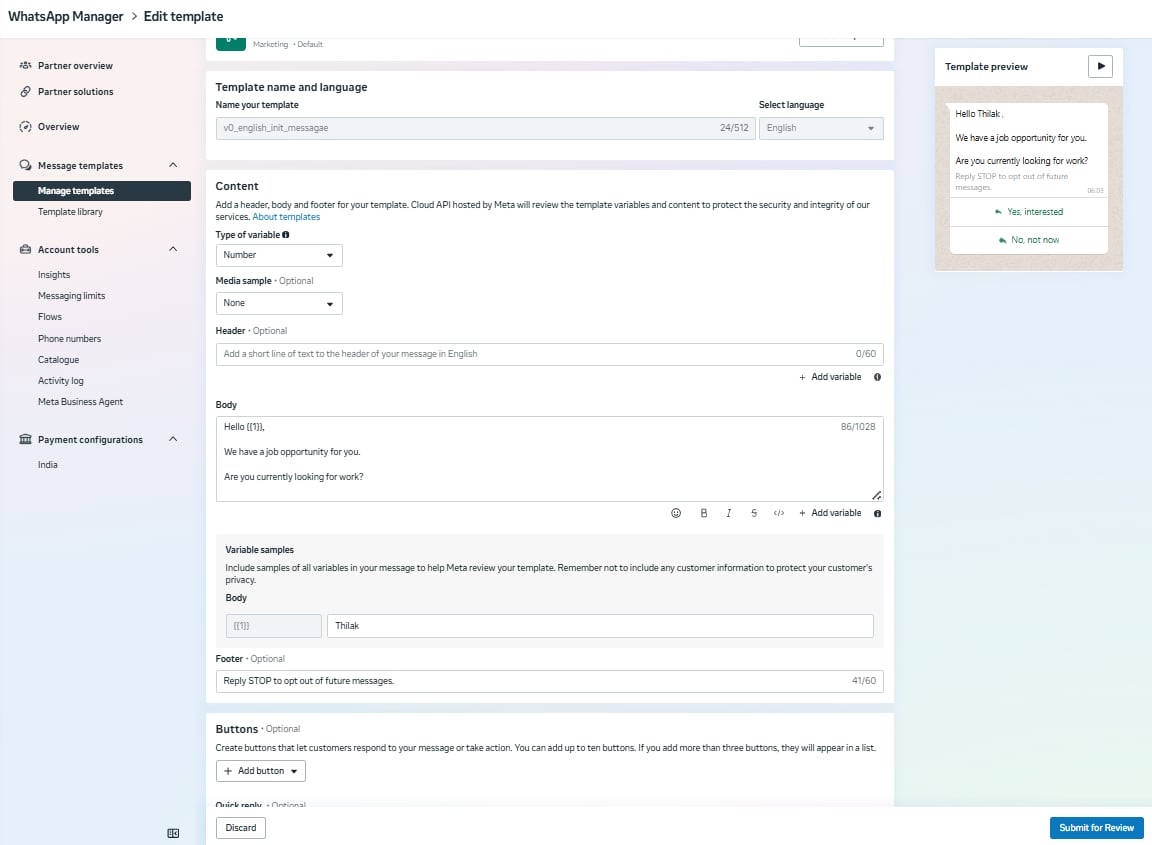
### Template 1 — Job Interest
| Field | Value |
| -------- | --------------------- |
| Category | Utility |
| Header | None |
| Footer | Reply STOP to opt out |
#### Body
```text theme={null}
Hi,
We have a job opportunity for you.
Are you currently looking for work?
```
#### Buttons
* Yes, interested
* No, not now
#### Variables
| Variable | Description |
| -------- | -------------- |
| `{{1}}` | Candidate Name |
 ### Template 2 — Yes Reply / Skill Assessment Invitation
| Field | Value |
| -------- | ------- |
| Category | Utility |
| Header | None |
#### Body
```text theme={null}
Thanks for confirming!
{{1}} would like you to complete a quick skill check for the {{2}} role.
It only takes about 5 - 10 minutes. Simply answer a few questions in your own words.
Tap below to begin.
{{3}}
```
#### Variables
| Variable | Description |
| -------- | -------------- |
| `{{1}}` | Company Name |
| `{{2}}` | Job Role |
| `{{3}}` | Assessment URL |
#### Example URL
```text theme={null}
https://verification.userecord.io/verification?id=2357
```
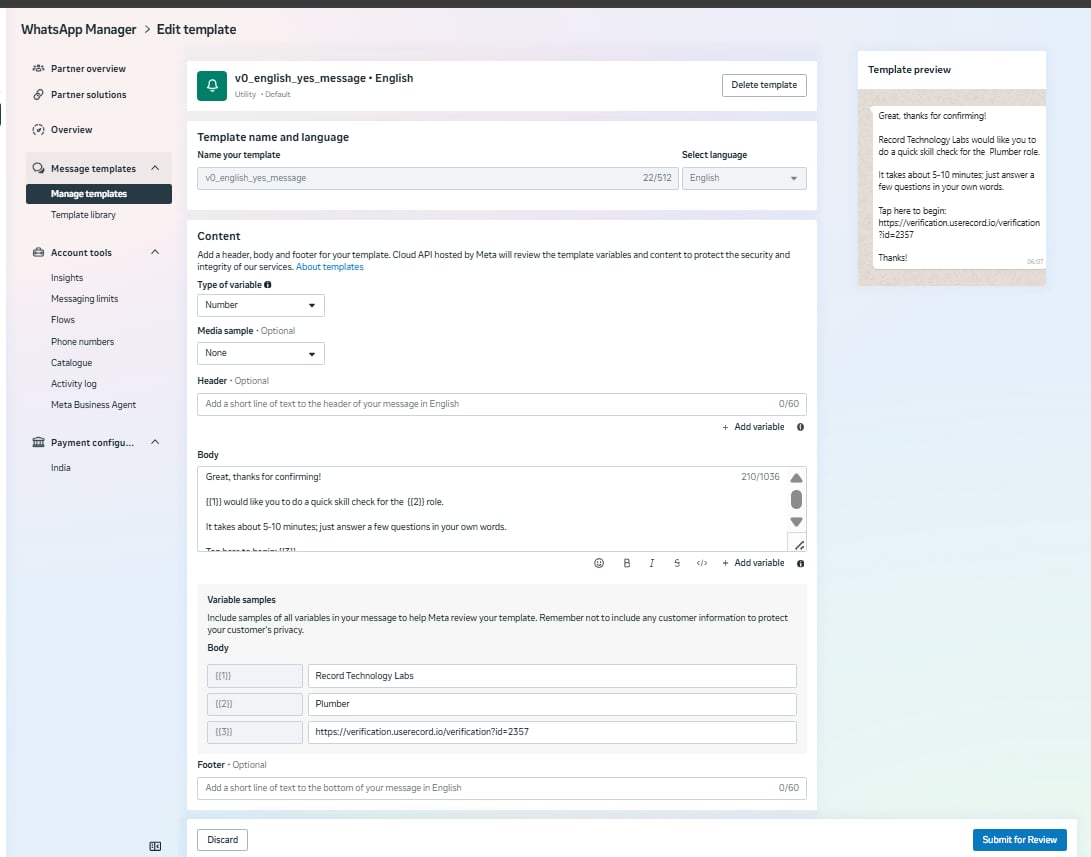
### Template 2 — Yes Reply / Skill Assessment Invitation
| Field | Value |
| -------- | ------- |
| Category | Utility |
| Header | None |
#### Body
```text theme={null}
Thanks for confirming!
{{1}} would like you to complete a quick skill check for the {{2}} role.
It only takes about 5 - 10 minutes. Simply answer a few questions in your own words.
Tap below to begin.
{{3}}
```
#### Variables
| Variable | Description |
| -------- | -------------- |
| `{{1}}` | Company Name |
| `{{2}}` | Job Role |
| `{{3}}` | Assessment URL |
#### Example URL
```text theme={null}
https://verification.userecord.io/verification?id=2357
```
 ### Template 3 — Not Interested
| Field | Value |
| -------- | ----------------------------------------- |
| Category | Utility |
| Header | None |
| Footer | Reply STOP to opt out of future messages. |
#### Body
```text theme={null}
Hi {{1}},
No worries, thanks for letting us know.
We'll keep your profile in mind if a suitable opportunity comes up in the future.
Wishing you all the best!
```
#### Variables
| Variable | Description |
| -------- | -------------- |
| `{{1}}` | Candidate Name |
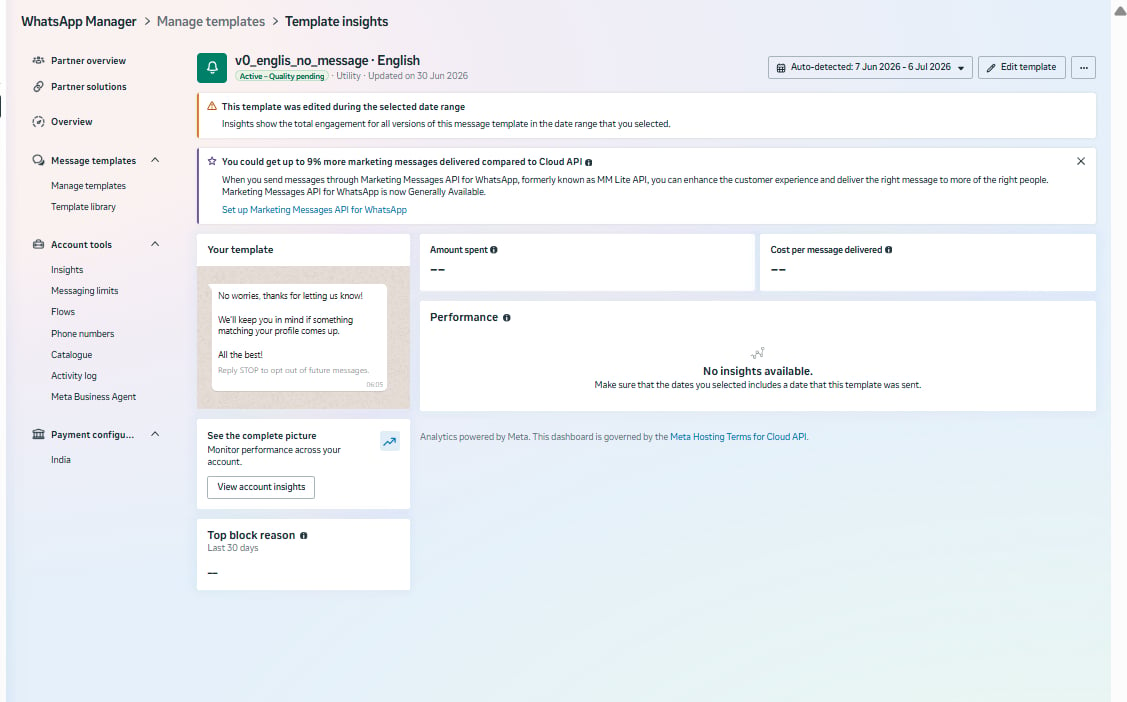
### Template 3 — Not Interested
| Field | Value |
| -------- | ----------------------------------------- |
| Category | Utility |
| Header | None |
| Footer | Reply STOP to opt out of future messages. |
#### Body
```text theme={null}
Hi {{1}},
No worries, thanks for letting us know.
We'll keep your profile in mind if a suitable opportunity comes up in the future.
Wishing you all the best!
```
#### Variables
| Variable | Description |
| -------- | -------------- |
| `{{1}}` | Candidate Name |
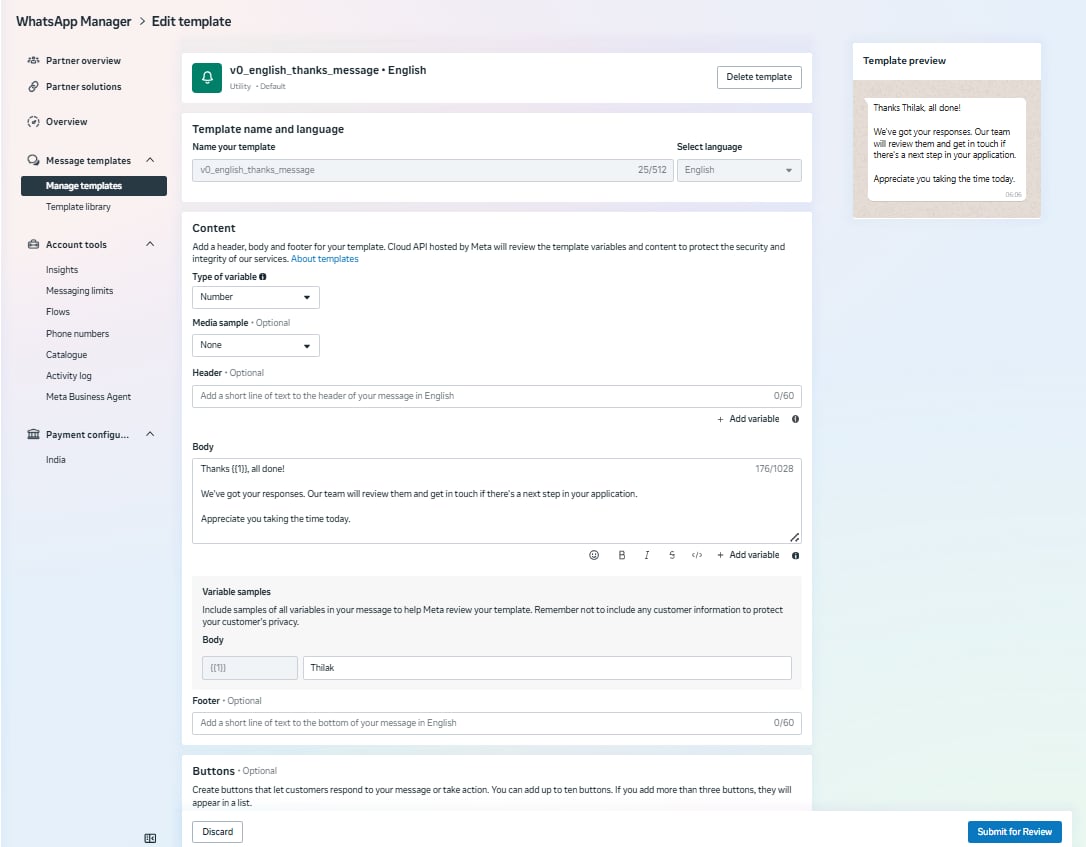
 ### Template 4 — Assessment Completed
| Field | Value |
| -------- | ------- |
| Category | Utility |
| Header | None |
#### Body
```text theme={null}
Hi {{1}},
Thanks, you're all done!
We've received your responses.
Our recruitment team will review them and contact you if there's a next step in your application.
We appreciate your time and wish you the very best.
```
#### Variables
| **Variable** | **Description** |
| :----------- | :-------------- |
| `{{1}}` | Candidate Name |
### Template 4 — Assessment Completed
| Field | Value |
| -------- | ------- |
| Category | Utility |
| Header | None |
#### Body
```text theme={null}
Hi {{1}},
Thanks, you're all done!
We've received your responses.
Our recruitment team will review them and contact you if there's a next step in your application.
We appreciate your time and wish you the very best.
```
#### Variables
| **Variable** | **Description** |
| :----------- | :-------------- |
| `{{1}}` | Candidate Name |
 ## 7. Best Practices
Use these guidelines if you are adding your own message in the WhatsApp template.
To improve message delivery and candidate engagement, we recommend the following:
* Keep messages conversational and friendly.
* Avoid phrases such as **Profile Verification** or **Employment Verification**, as they can resemble phishing or KYC scam language.
* Use branded messaging wherever possible.
* Avoid exposing technical query parameters in links outside of Meta Call-to-Action buttons.
* Always include an opt-out message.
* Keep templates concise and easy to understand.
* Use localized language for each supported region instead of direct word-for-word translations.
Avoid sending raw URLs with visible technical parameters such as workflow IDs or candidate IDs in the message body. Use a Meta Call-to-Action button wherever possible.
***
## 8. Information to Share with Record
Once everything is ready, please share the following with the Record implementation team:
* Phone Number ID
* Permanent Access Token
* Webhook successfully configured
* Callback URL verified
* Verify Token configured
* Approved WhatsApp Template Names for all languages
* Confirmation that the WhatsApp Business number is ready for integration
After receiving these details, the Record team will complete the platform configuration and activate WhatsApp messaging for your account.
## 7. Best Practices
Use these guidelines if you are adding your own message in the WhatsApp template.
To improve message delivery and candidate engagement, we recommend the following:
* Keep messages conversational and friendly.
* Avoid phrases such as **Profile Verification** or **Employment Verification**, as they can resemble phishing or KYC scam language.
* Use branded messaging wherever possible.
* Avoid exposing technical query parameters in links outside of Meta Call-to-Action buttons.
* Always include an opt-out message.
* Keep templates concise and easy to understand.
* Use localized language for each supported region instead of direct word-for-word translations.
Avoid sending raw URLs with visible technical parameters such as workflow IDs or candidate IDs in the message body. Use a Meta Call-to-Action button wherever possible.
***
## 8. Information to Share with Record
Once everything is ready, please share the following with the Record implementation team:
* Phone Number ID
* Permanent Access Token
* Webhook successfully configured
* Callback URL verified
* Verify Token configured
* Approved WhatsApp Template Names for all languages
* Confirmation that the WhatsApp Business number is ready for integration
After receiving these details, the Record team will complete the platform configuration and activate WhatsApp messaging for your account.